How to Manage Docker Containers with Portainer
Install Portainer and use its web interface to manage Docker containers, images, networks, and volumes in this historical walkthrough.
Published · Republished on Medium
Historical article (January 2021): this walkthrough preserves an old Docker Swarm and Portainer UI. It is not a current installation guide. The image tag is unpinned, the UI uses plaintext HTTP on port 9000, and mounting the Docker socket gives the container control equivalent to the Docker daemon. Do not expose or deploy this example today.
Historical Context
Portainer is the definitive open-source container management UI tool for Kubernetes, Docker, Docker Swarm, and Azure ACI. It allows anyone to deploy and manage containers without the need to write code. By negating the need for users to use CLI, write YAML or understand manifests, Portainer makes deploying apps and troubleshooting problems so simple, anyone can do it.
Original Topology
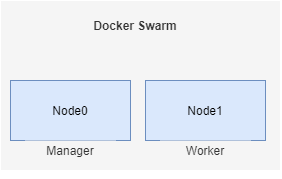
Original VM profile:
- Ubuntu 20.04
- 4 vCPUs
- 8 GB RAM
Ok, Let’s get started.
Preserved Swarm Setup
Execute on All Nodes
- Update and upgrade package
bash
sudo apt update -y; sudo apt upgrade -y; sudo apt update -y- Install and running docker.io
bash
sudo apt install -y docker.io
sudo systemctl start docker
sudo systemctl enable docker
sudo systemctl status docker
sudo docker info
Execute on node0
- Init docker swarm
bash
sudo docker swarm init --advertise-addr 10.10.10.10
sudo docker info
sudo docker node ls- Show the join command for the worker
text
sudo docker swarm join-token workerSecurity correction: the original article published a complete Swarm join token. It has been removed. Treat join tokens as credentials, rotate them if disclosed, and never place them in documentation or source control.
Execute on node1
- Join worker to the docker swarm cluster
bash
docker swarm join --token '<REDACTED_JOIN_TOKEN>' 10.10.10.10:2377Return to node0
- Check node on cluster
sudo docker node ls
- Deploy portainer
Archive warning: the following
docker runis the old standalone pattern, not the current Portainer Swarm deployment. Current official Swarm guidance deploys Portainer Server plus a global Agent service, uses TLS on port 9443 by default, and requires controlled node communication. The Docker socket grants powerful host control and must not be exposed to an untrusted container or network.
docker volume create portainer_data
bash
docker run -d -p 8000:8000 -p 9000:9000 --name=portainer --restart=always -v /var/run/docker.sock:/var/run/docker.sock -v portainer_data:/data portainer/portainer-ce- Verify container portainer
docker ps -a
Wait until the Portainer container reports a healthy running state.
- Verify on browser
text
http://[IP_NODE0]:9000The historical UI then asks for an administrator password.
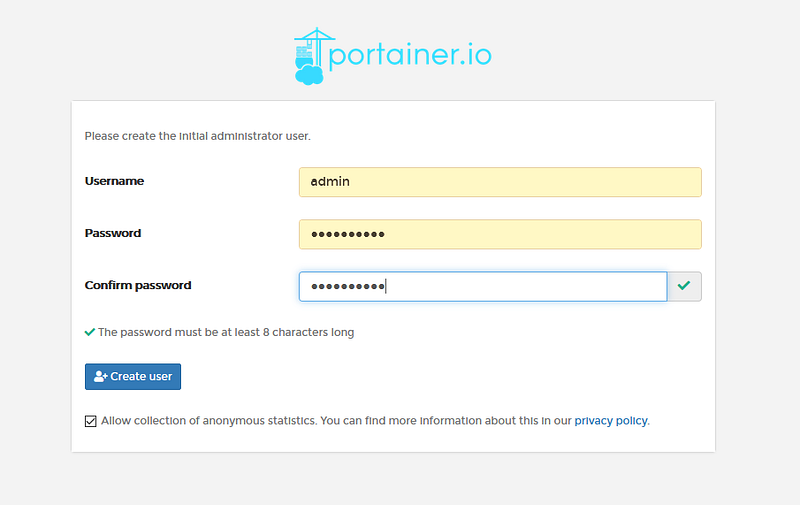
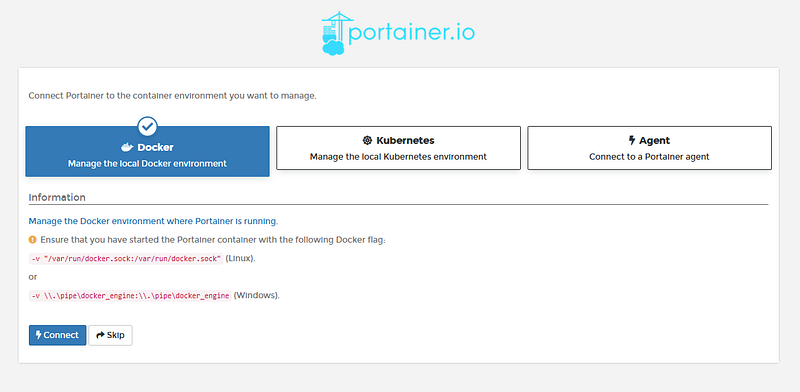
- Choose environment docker
- Verify node on cluster swarm
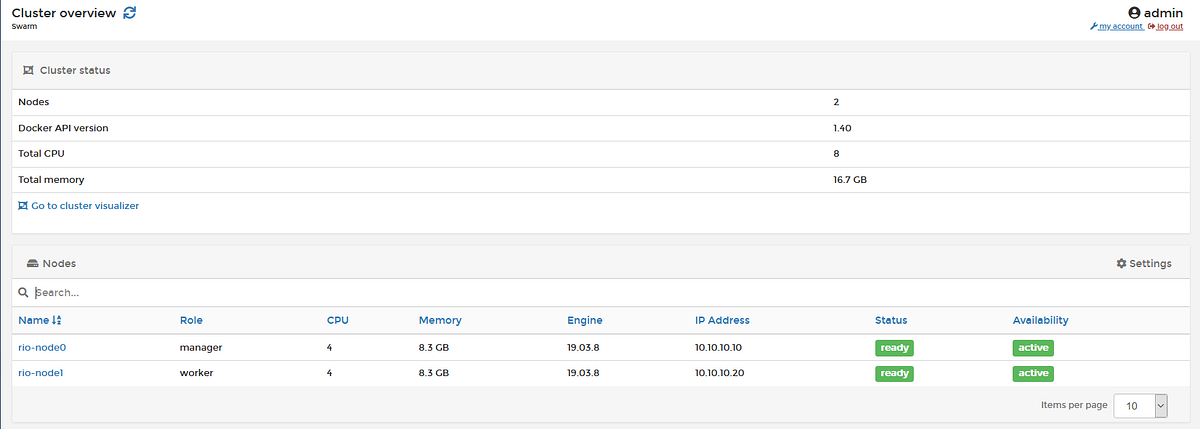
- Check Dashboard for show endpoint summary
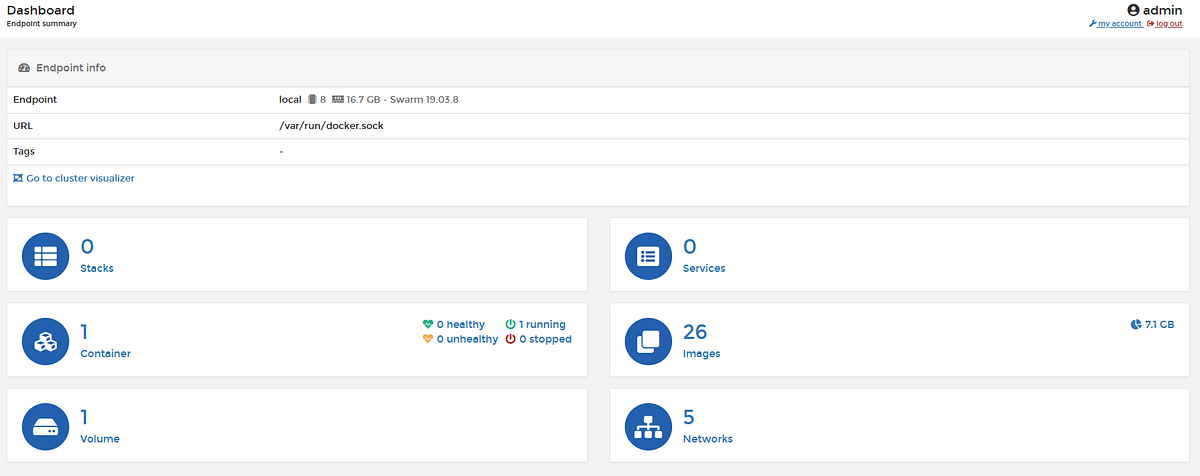
- Let’s try deploying an application with portainer
Open Application Templates, and select an application. As an example, I will use WordPress. Manually, if you want to deploy WordPress, we need to deploy MySQL service as the database and WordPress service. But with Portainer we only need one click until this application is deployed without needing to create code.
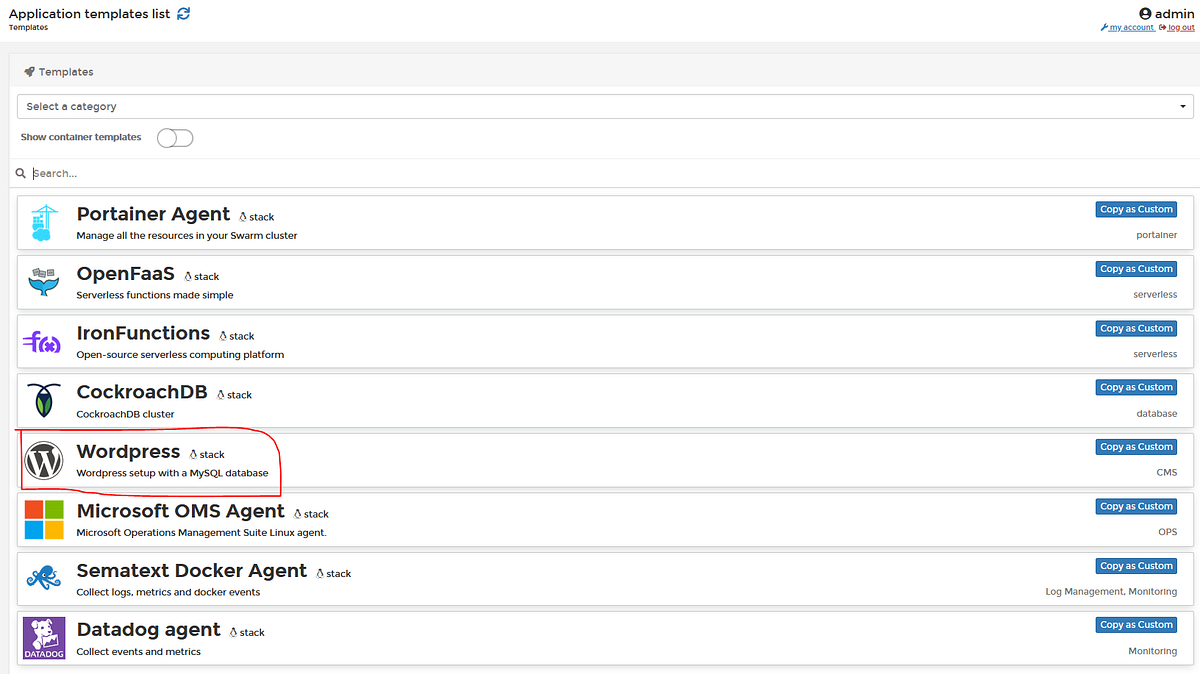
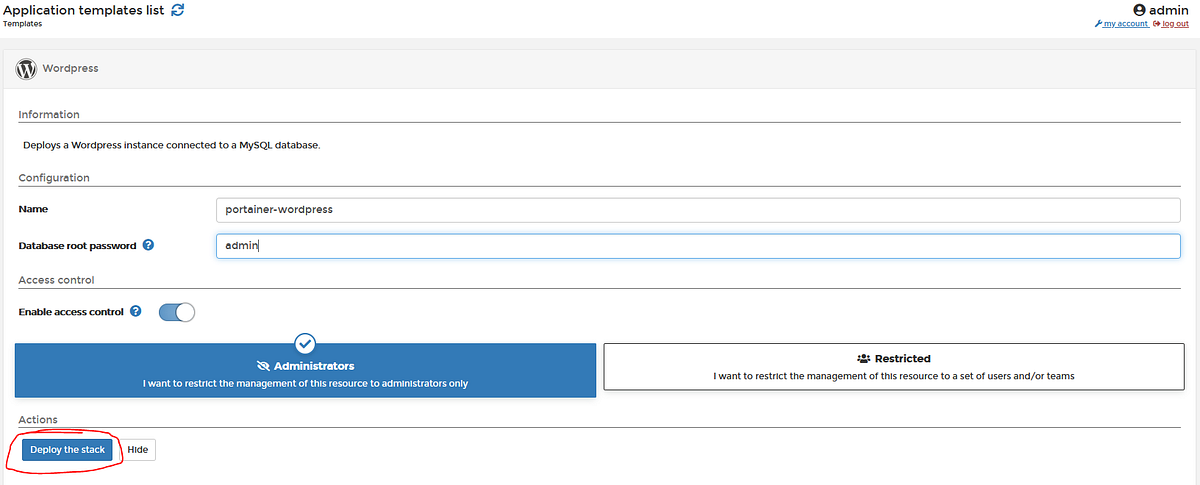
And then just wait until this application is deployed.
- Click on name of container
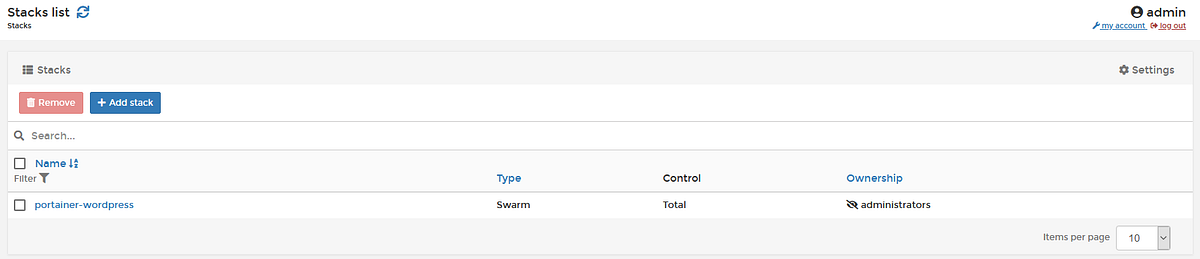
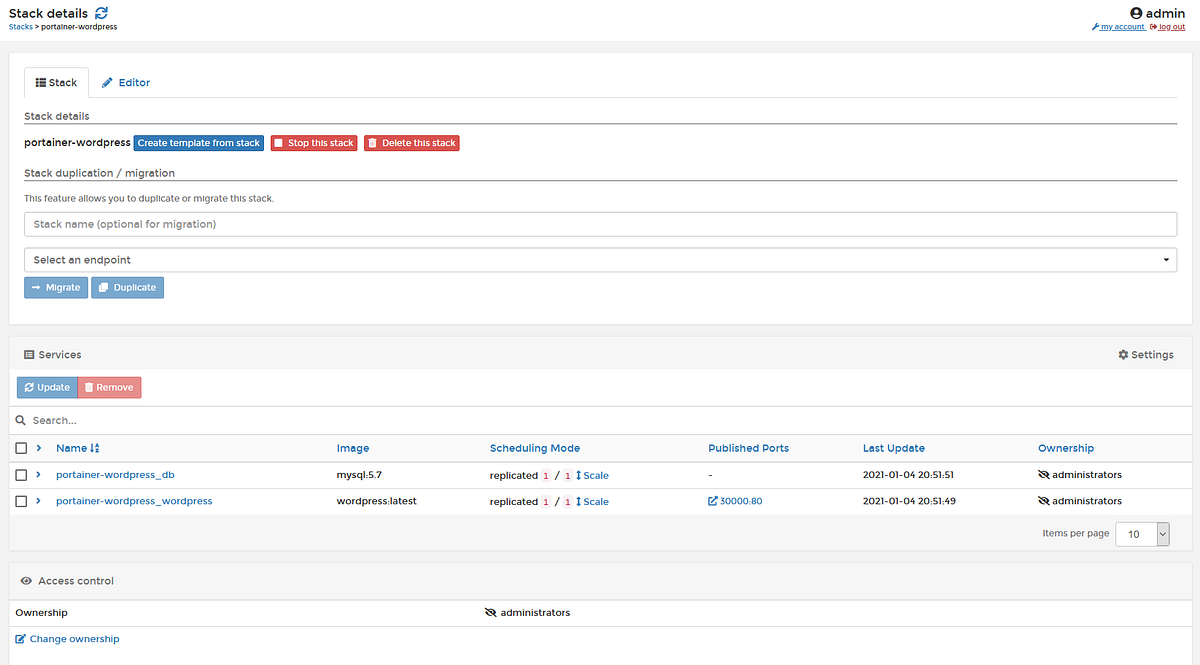
You can also set how much scaling is used for a single container or service
- Verify application WordPress on browser
text
http://[IP_NODE0]:PublishedPortstext
# Historical example
http://10.10.10.10:30000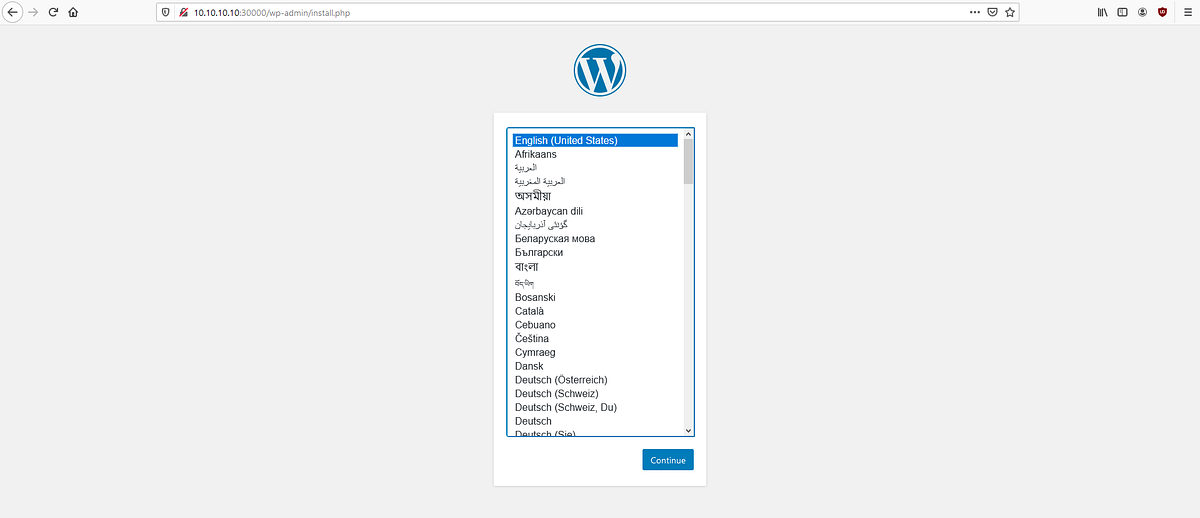
What Changed Since Publication
Current Portainer documentation distinguishes Docker Standalone from Docker Swarm. The Swarm installation deploys a single Portainer Server service and a Portainer Agent as a global service, expects the nodes to communicate on the documented ports, and exposes the UI over HTTPS by default. A current design must pin the Portainer version or digest, protect administrative access, use trusted TLS, back up Portainer data, restrict network exposure, and test upgrades and recovery.
Application templates are convenience inputs, not a security review. Inspect images, tags, secrets, volumes, networks, published ports, resource limits, health checks, backups, and update ownership before deploying a template.