How to Import an Existing Kubernetes Cluster into Rancher
Import an existing Kubernetes cluster into Rancher and review its monitoring and cluster-management workflow in this historical guide.
Published · Republished on Medium
Historical article (December 2020): this page preserves a Rancher 2.x lab UI and single-container installation. Rancher documents single-node Docker installation for development and testing only, not production. The command below is privileged, unpinned, and has no explicit durable-data or recovery design; do not reuse it as a current deployment baseline.
This archived walkthrough shows how an existing Kubernetes cluster was managed and monitored with Rancher.
Overview
Rancher was originally built to work with multiple orchestrators, and it included its own orchestrator called Cattle. With the rise of Kubernetes in the marketplace, Rancher 2.x exclusively deploys and manages Kubernetes clusters running anywhere, on any provider.
Rancher can provision Kubernetes from a hosted provider, provision computes nodes, and then install Kubernetes onto them, or import existing Kubernetes clusters running anywhere.
One Rancher server installation can manage thousands of Kubernetes clusters and thousands of nodes from the same user interface.
Rancher adds significant value on top of Kubernetes, first by centralizing authentication and role-based access control (RBAC) for all of the clusters, giving global admins the ability to control cluster access from one location.
It then enables detailed monitoring and alerting for clusters and their resources, ships logs to external providers, and integrates directly with Helm via the Application Catalog. If you have an external CI/CD system, you can plug it into Rancher, but if you don’t, Rancher even includes a pipeline engine to help you automatically deploy and upgrade workloads.
Rancher is a complete container management platform for Kubernetes, giving you the tools to successfully run Kubernetes anywhere.
Preserved Lab Walkthrough
Actually, with Rancher, we can also create their own Kubernetes cluster. But here I will create a blog on how to manage the Kubernetes cluster that I created earlier. And here I will use the quick start manual for the Rancher server
What do you need for it?
- Existing Kubernetes cluster. if you don’t have and don’t know how to create a Kubernetes cluster you can follow my blog.
Historical kubeadm HA walkthrough
- One vm/server as the Rancher Server ( 4 VCPUs, and RAM 4GB)
How to set up Rancher Server
- Update and upgrade package
sudo apt update -y; sudo apt upgrade -y; sudo apt update -y
- Install and running docker.io
config
sudo apt install docker.io -y
sudo systemctl enable docker
sudo systemctl start docker
sudo systemctl status docker- Running Rancher server
Archive warning: the following command tracks a mutable image tag, publishes the management UI directly, and grants privileged container access. Current production guidance recommends Rancher on a dedicated highly available Kubernetes cluster using Helm. If evaluating the Docker method, pin a supported Rancher version and follow the official TLS, persistence, backup, and upgrade documentation.
sudo docker run -d --restart=unless-stopped -p 80:80 -p 443:443 --privileged rancher/rancher:<HISTORICAL_VERSION>
- Access Dashboard Rancher
https://IP_SERVER_RANCHER
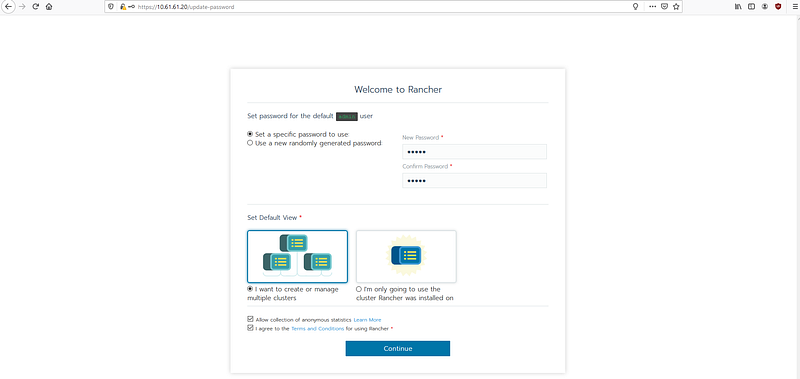
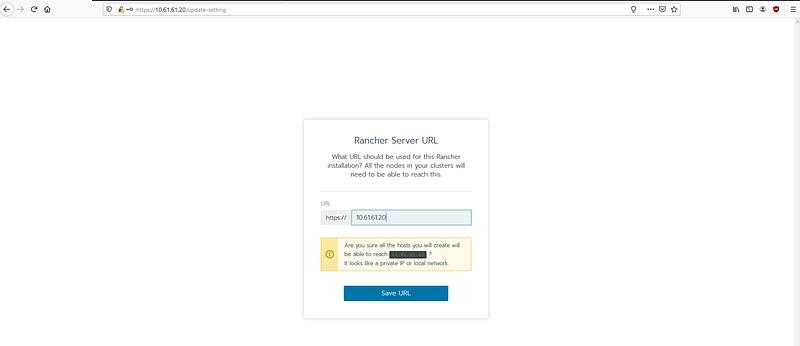
- Set URL for dashboard Rancher
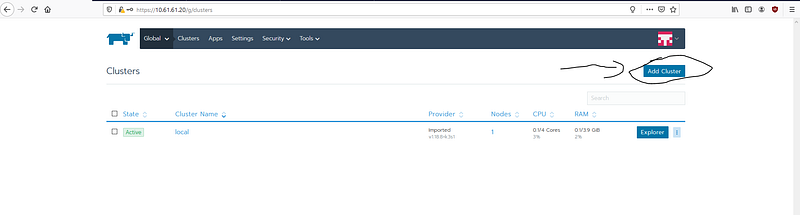
- Add Existing Cluster Kubernetes
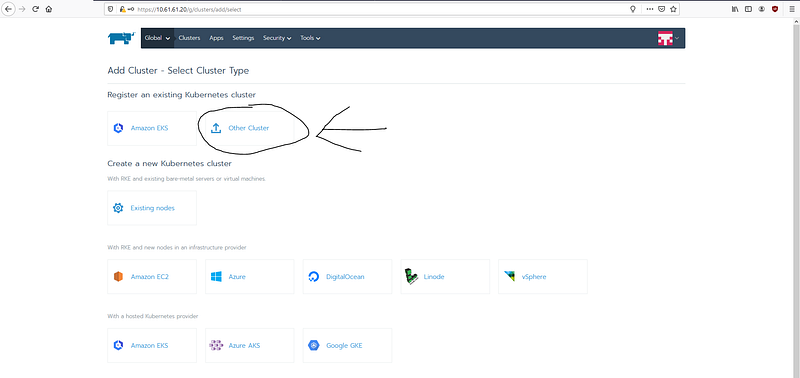
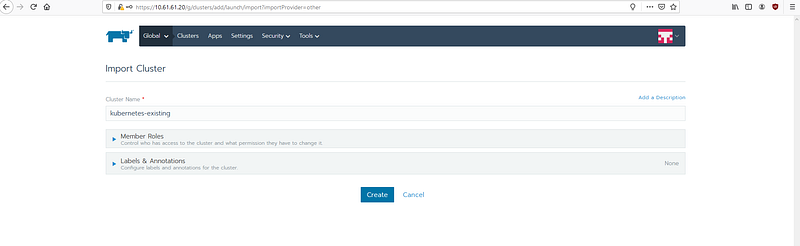
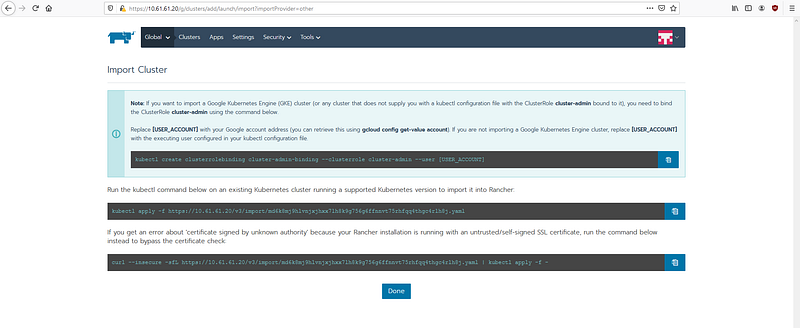
- This lab used the administrative identity referenced by
/root/.kube/config.
Do not publish kubeconfig contents: they can contain client certificates, tokens, endpoints, and other credentials. The excerpt below is structural and intentionally omits credential material.
config
cat /root/.kube/config
...
kind: Config
preferences: {}
users:
- name: kubernetes-admin <<<<<<<<<<
...- Grant the registration identity the privileges required by this historical lab and apply Rancher's generated registration manifest.
kubectl create clusterrolebinding cluster-admin-binding --clusterrole cluster-admin --user kubernetes-admin
Security correction: the original article exposed a generated registration URL and disabled TLS verification with
--no-check-certificate. Both have been removed. A registration manifest contains environment-specific trust and enrollment data. Retrieve it from the intended Rancher instance over verified TLS, inspect its resources and cluster-wide privileges, apply it from a controlled session, and rotate or regenerate it if disclosed.
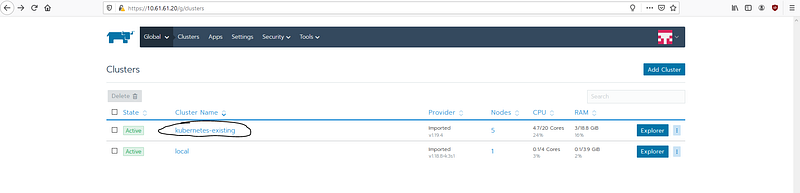
- Just wait until the cluster is ready for you to manage, and if the state has become Active, it means you can manage this cluster. And then click cluster name.
- Now, you can see about the imported Kubernetes cluster.
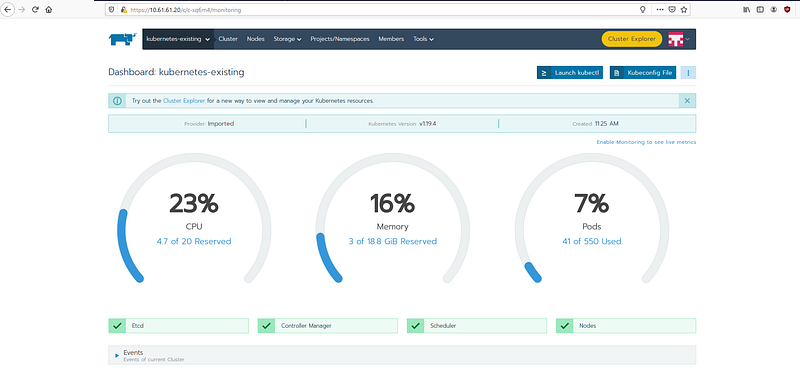
Until this point, you have successfully imported the Kubernetes cluster with Rancher server. Next, I will show you how to manage a cluster using a rancher server
- Explorer your cluster kubernetes
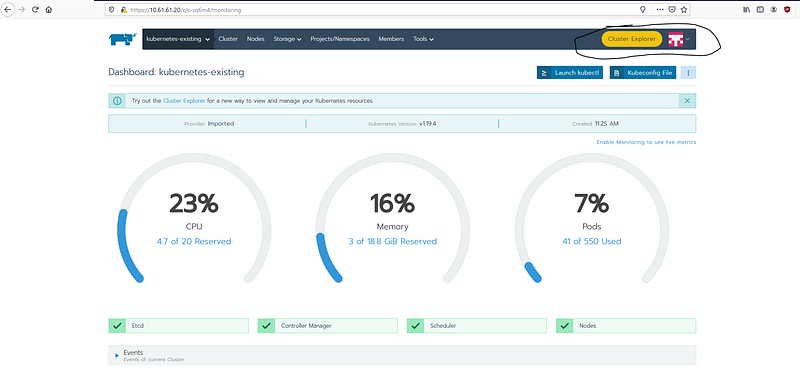
- The dashboard is almost similar to the dashboard from Kubernetes itself. And the function is the same, which is looking at your own cluster
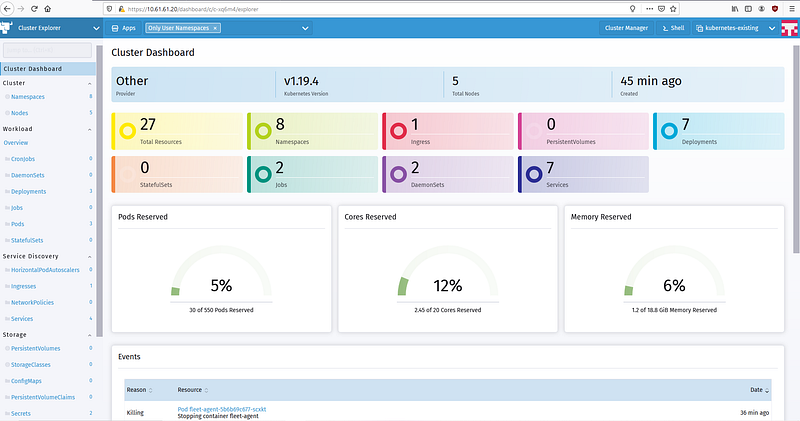
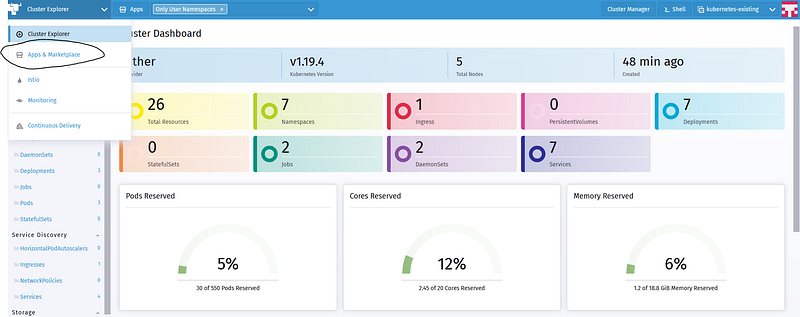
- Let’s try, install or create service promotheus and grafana dashboard as a monitoring system for your Kubernetes cluster dashboard. First click Apps & Marketplace
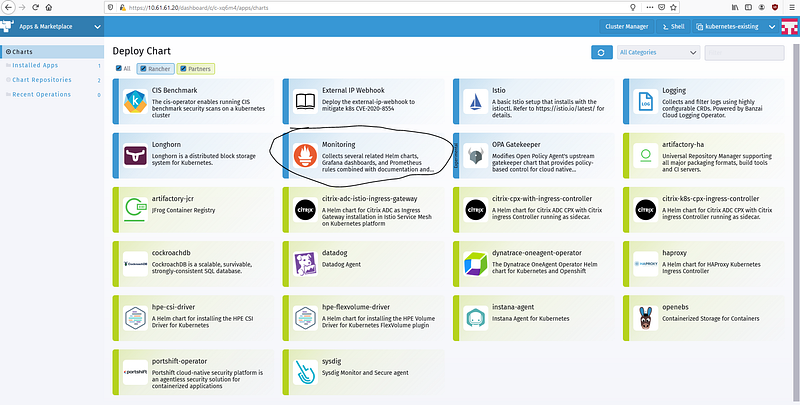
- In this app and marketplace, we can see some of the services that ranchers have provided and that we can install. But here, we will try to install monitoring for your Kubernetes cluster. Click Monitoring.
- Choose your project, I’ll try to do it in the System project. And then click Install
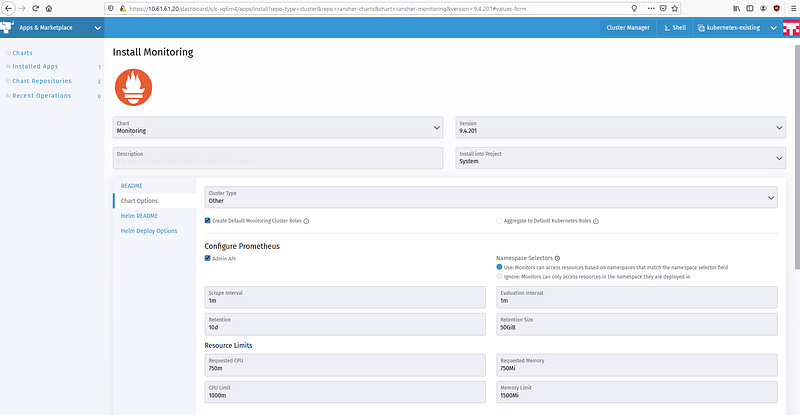
- Just wait until the monitoring service is finished installing. and when it’s finished and the status has changed to deployed. Move to the monitoring menu
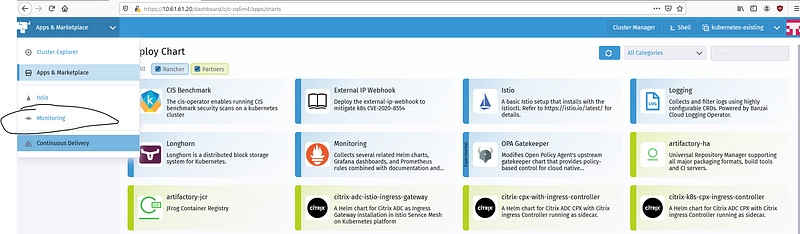
- Then click grafana, and you will be directed to the grafana dashboard.
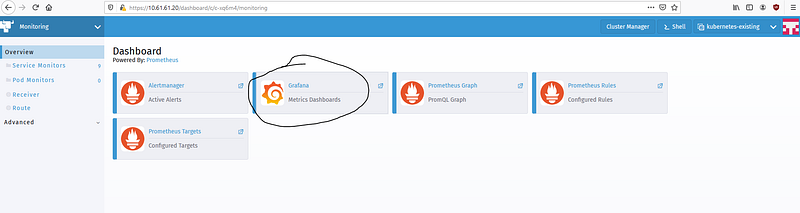
- Here you will immediately be directed to the grafana home dashboard.
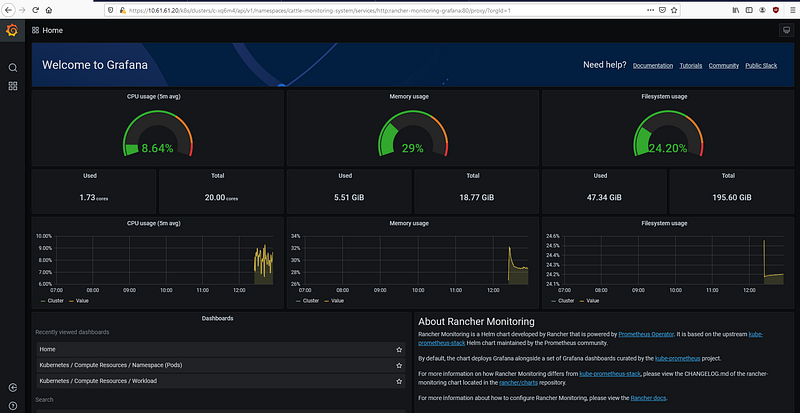
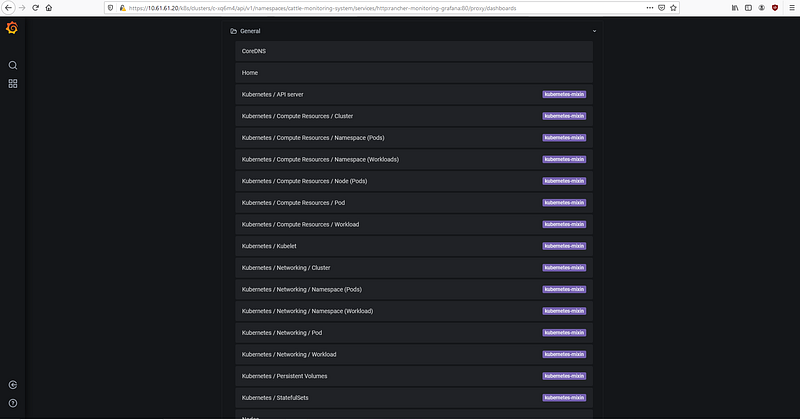
- Grafana also provides several dashboards that can be displayed. You can choose which dashboard or which resource you want to display
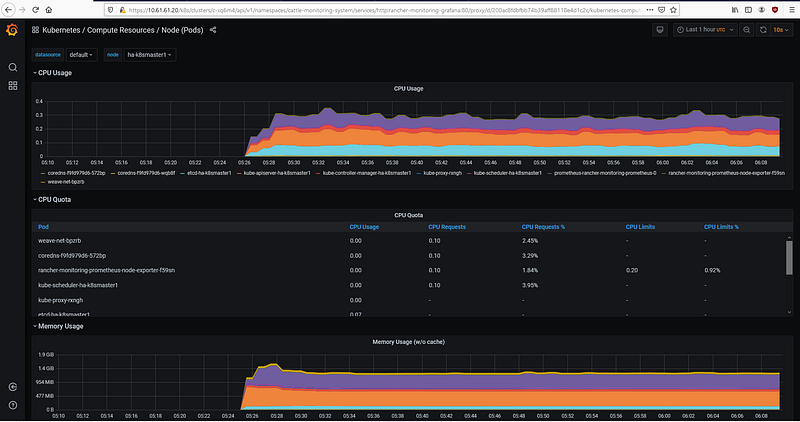
- This is another example of a dashboard. This dashboard displays compute resources and nodes (pods) in the Kubernetes cluster
What Changed Since Publication
Rancher now calls this workflow cluster registration. The current procedure still requires cluster-admin capability for registration, which is a substantial trust decision: review who can obtain and run the manifest, what agents and cluster-wide RBAC it creates, how Rancher server certificates are trusted, and how access is revoked when the cluster is deregistered.
The management capability also depends on cluster type. Registering a cluster does not necessarily transfer full lifecycle ownership, and deleting a registered hosted cluster from Rancher can disconnect management while leaving the downstream cluster running. Decide explicitly whether Kubernetes upgrades remain external or are managed through Rancher.
The screenshots for Apps, Monitoring, Prometheus, and Grafana reflect the 2020 catalog and UI. Current chart versions, namespaces, storage, credentials, resource requests, retention, ingress, and upgrade behavior must be reviewed from the supported Rancher release instead of inferred from these images.
For production, use the recommended highly available Rancher installation, trusted TLS, pinned chart and image versions, restricted administrative access, API audit logging where required, and tested Rancher backup and restore. Keep the Rancher management cluster separate from user workloads where practical.