How to Create an Amazon EKS Cluster with Managed Node Groups
Create an Amazon EKS cluster, add managed worker nodes, configure kubectl access, and review the deployment workflow in this historical guide.
Published · Republished on Medium
Historical article (September 2021): this walkthrough is preserved to show the console workflow used at publication time. It is not a current EKS installation guide. Console screens, IAM policies, Kubernetes versions, add-ons, access management, AMIs, and Helm charts have changed. Do not execute the commands below in production without rebuilding the design from current AWS documentation.
Historical Context
Amazon Web Services (AWS) is the world’s most comprehensive and broadly adopted cloud platform, offering over 200 fully featured services from data centers globally. Millions of customers — including the fastest-growing startups, largest enterprises, and leading government agencies are using AWS to lower costs, become more agile, and innovate faster.
What Was EKS in This Walkthrough?
Amazon EKS is a managed service that helps make it easier to run Kubernetes on AWS. Through EKS, organizations can run Kubernetes without installing and operating a Kubernetes control plane or worker nodes. Simply put, EKS is a managed containers-as-a-service (CaaS) that drastically simplifies Kubernetes deployment on AWS.
The original walkthrough builds a cluster through the AWS console.
Original Topology
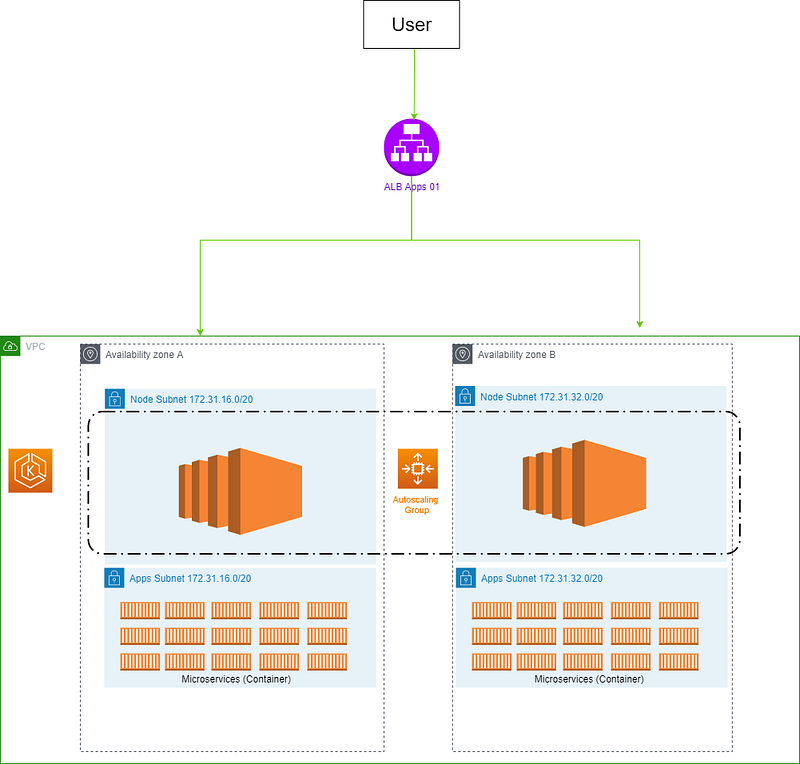
Original Prerequisites
- IAM role for eks cluster & node group eks
- VPC & subnet for node group eks
- Security group for eks & node group
- Key pair, if you need access to your cluster from public ip
Preserved Console Walkthrough
- Create Iam role for eks cluster & node group eks Go to IAM Dashboard, and then create IAM Role for eks & node group eks
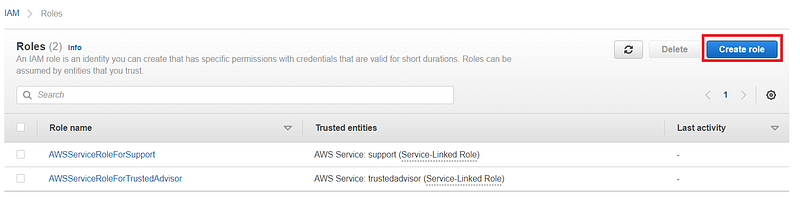
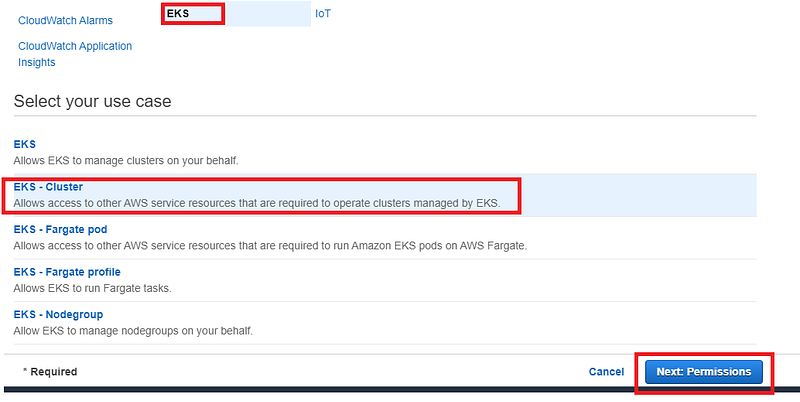
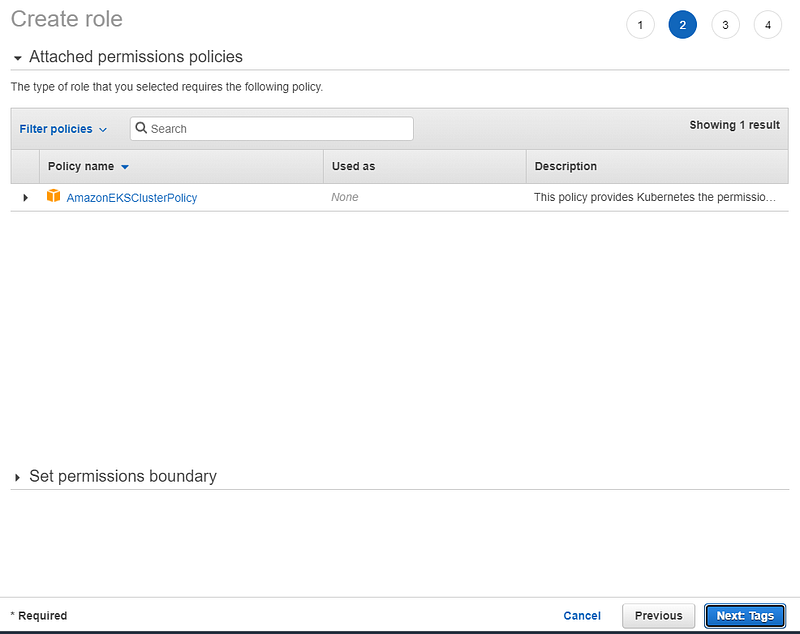
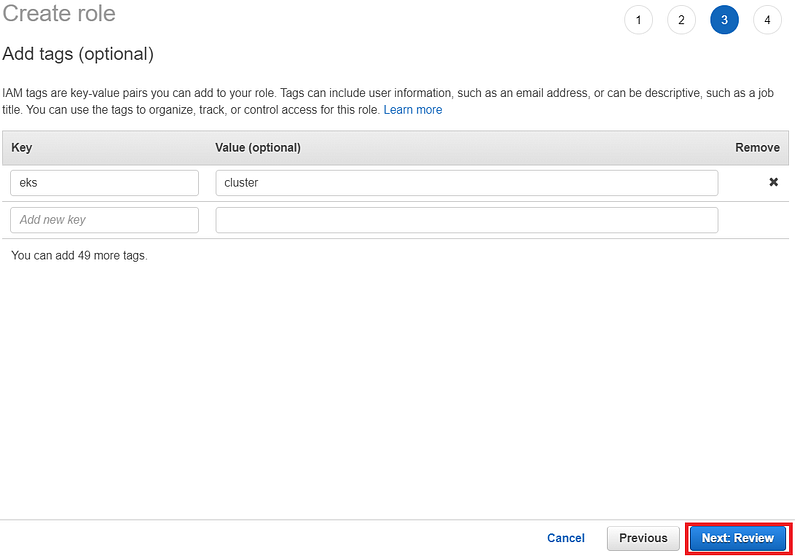
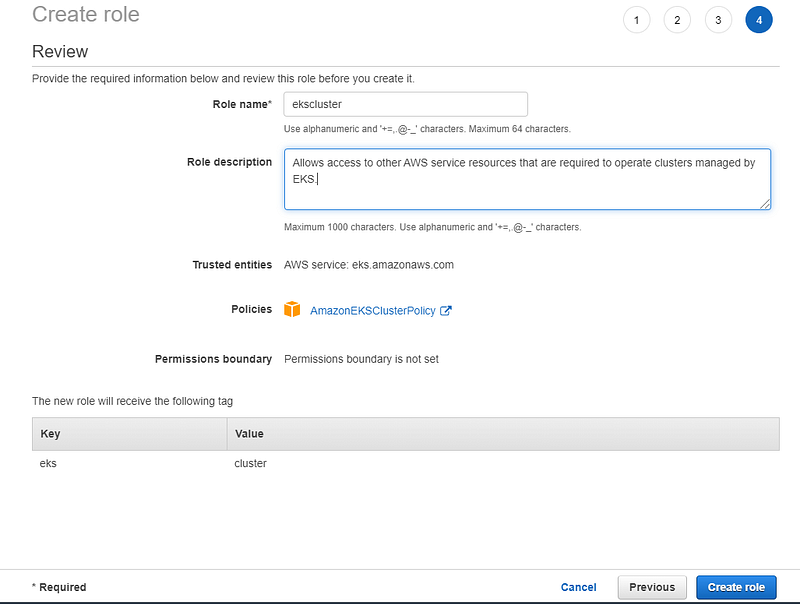
Next, we will create a iam role for eks node group. Let’s goo…
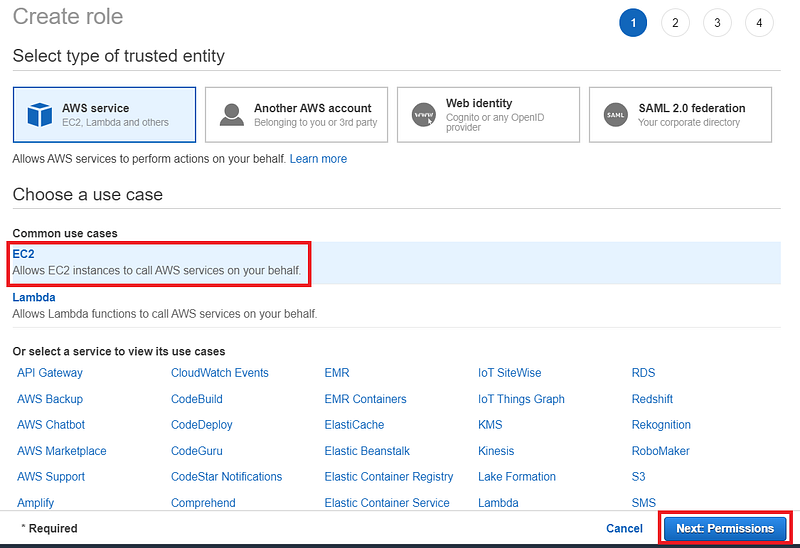
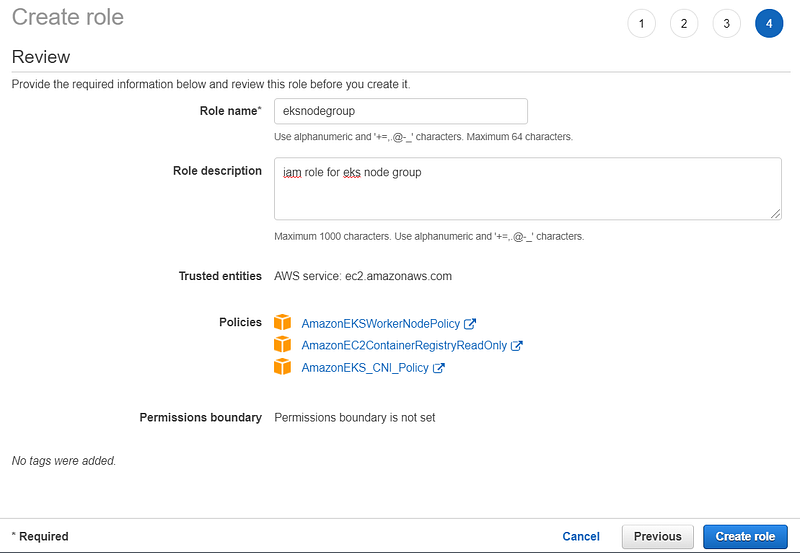
Same like before, but in step attach permission policies we just need to add the above policies
- VPC & subnet for worker node EKS Here list of default subnet from aws,
config
Az-A : 172.31.16.0/20
Az-B : 172.31.32.0/20- Create EKS Cluster
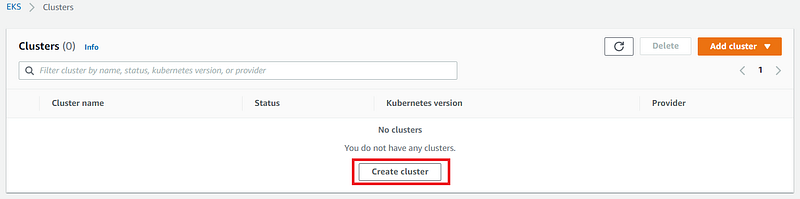
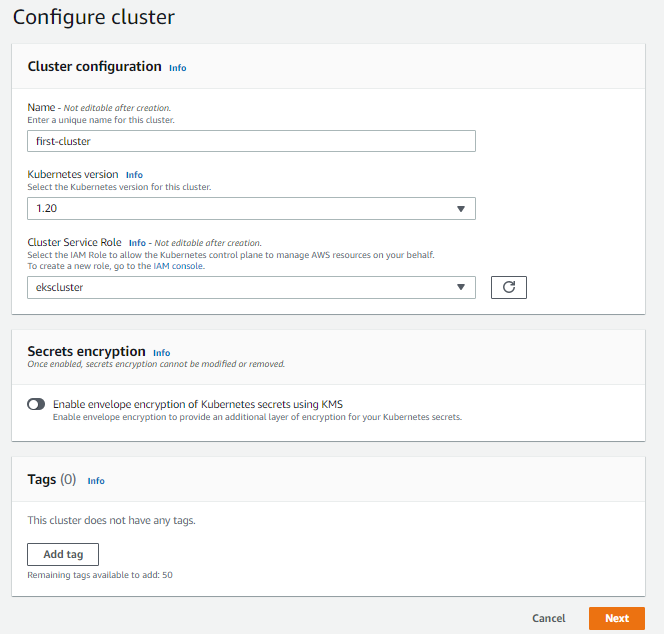
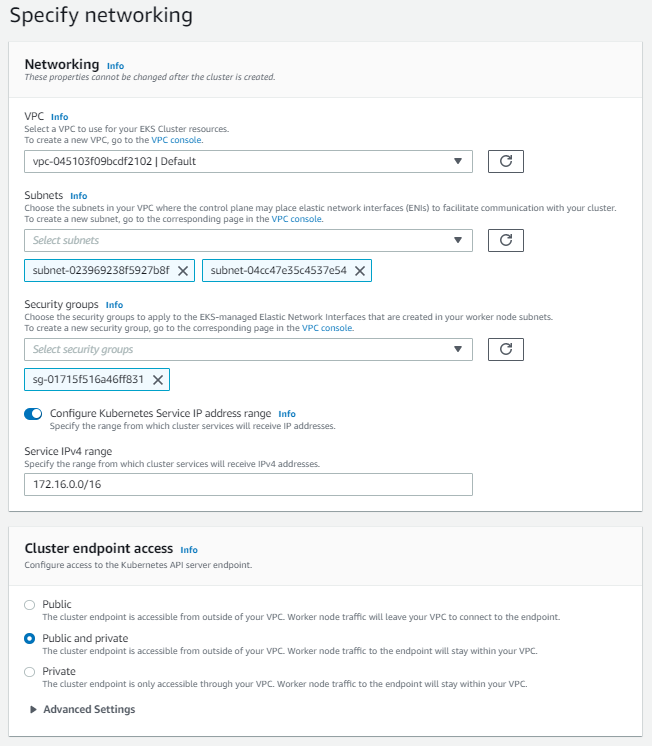
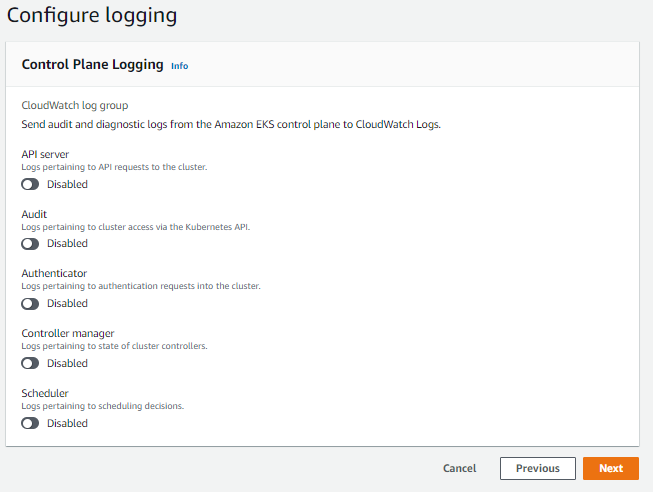
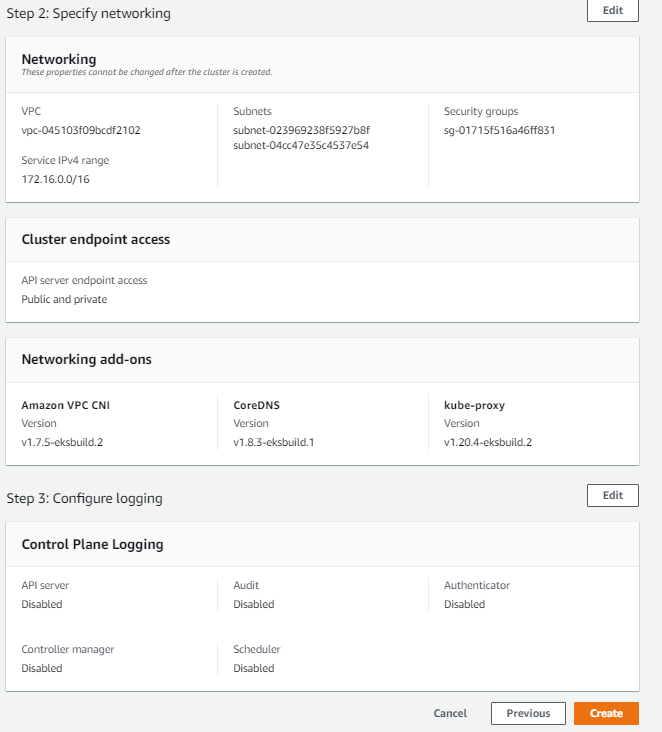
Wait until the cluster has been created.
- Access your cluster
Security correction: the original post exported long-lived access keys directly into the shell. That pattern has been removed. For human access, use federation or another source of temporary credentials and confirm the active AWS identity before updating kubeconfig. Do not put access keys in this article, shell history, source control, or screenshots.
bash
aws eks update-kubeconfig --region {region} --name {eks name}
kubectl config use-context {cluster arn}
kubectl get nodes -A
kubectl get pods -A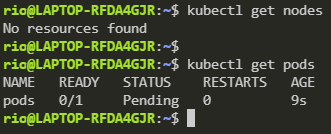

- Create Node Group for EKS Cluster
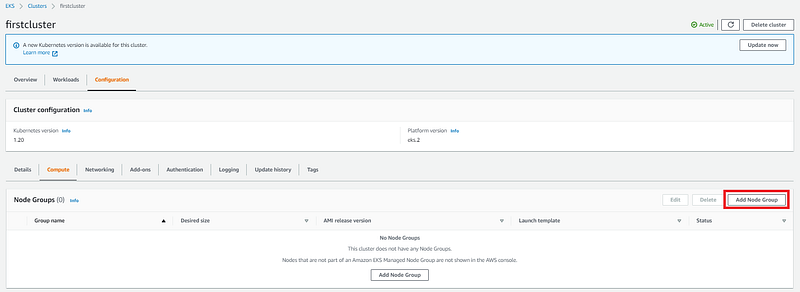
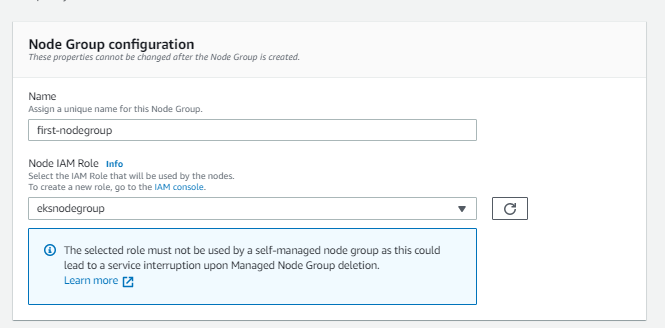
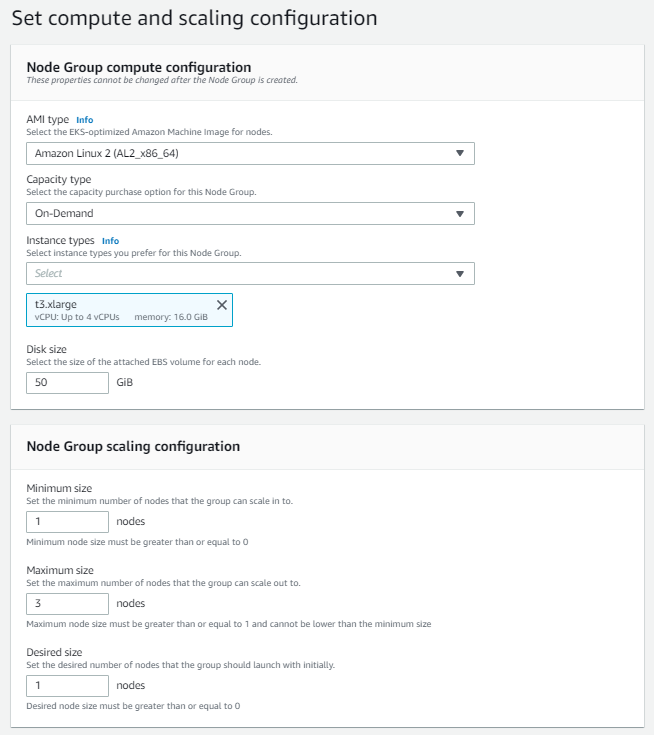
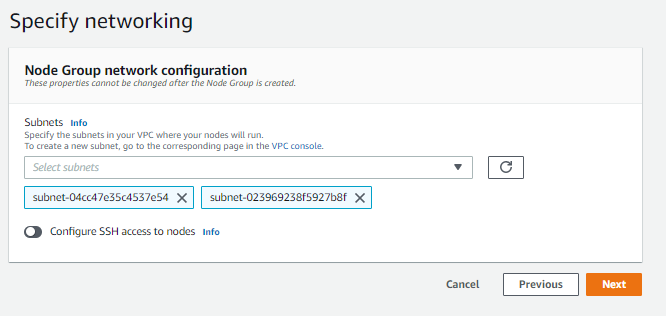
Wait until the node group is created. Check current status node & pods on cluster


- Deploy WordPress using the historical Helm example
bash
helm repo add stable https://charts.helm.sh/stable
helm install stable/wordpress --generate-name
Archive warning: the
stablechart repository and this invocation belong to the 2021 ecosystem. Select a currently maintained chart, pin its version, inspect its defaults and images, provide secrets through an approved mechanism, and test persistence, ingress, upgrades, and deletion before deploying today.
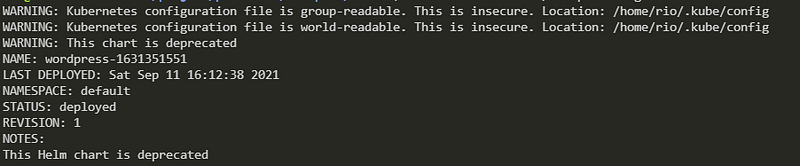

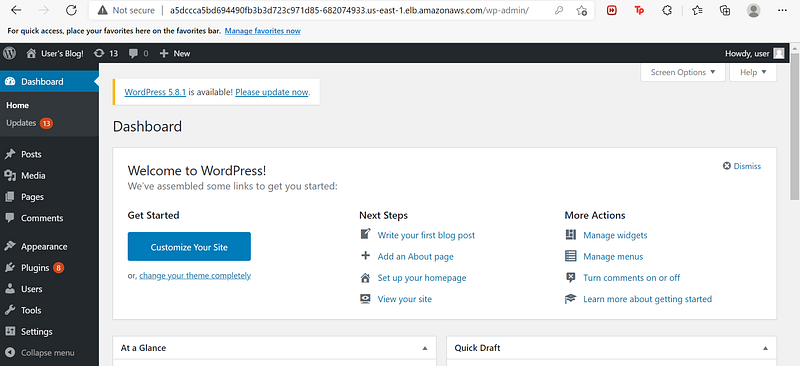
- Check or access wordpress using chrome
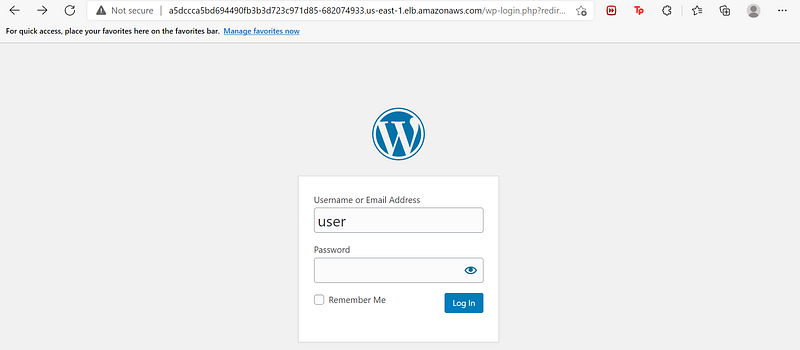
What Changed Since Publication
Current AWS guidance uses aws eks update-kubeconfig for kubectl access, recommends EKS access entries or access policies for additional principals, and separates workload AWS permissions through Pod Identity or IAM roles for service accounts. Current cluster design should also decide API endpoint exposure, control-plane logging, secrets encryption, add-on ownership, node update strategy, and workload identity before creation.
This article's default-subnet, broad console-driven, and manually selected IAM model should therefore be treated as historical evidence only—not as a reusable production baseline.